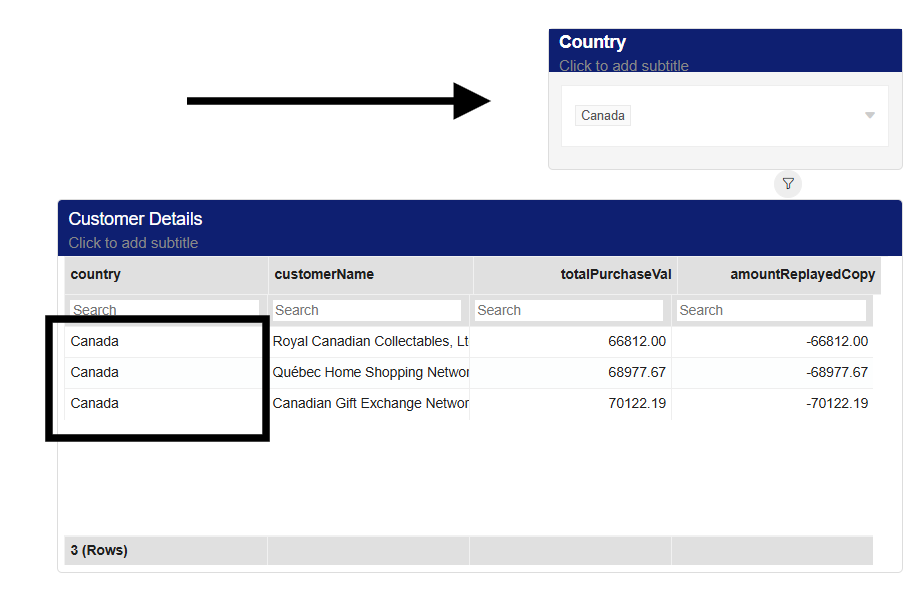
Adding Filters on a Report
Filter components let readers choose what data they want to analyse.
Filters work on both kinds of tile in PersivX — those created with drag and drop, and those created with custom queries.
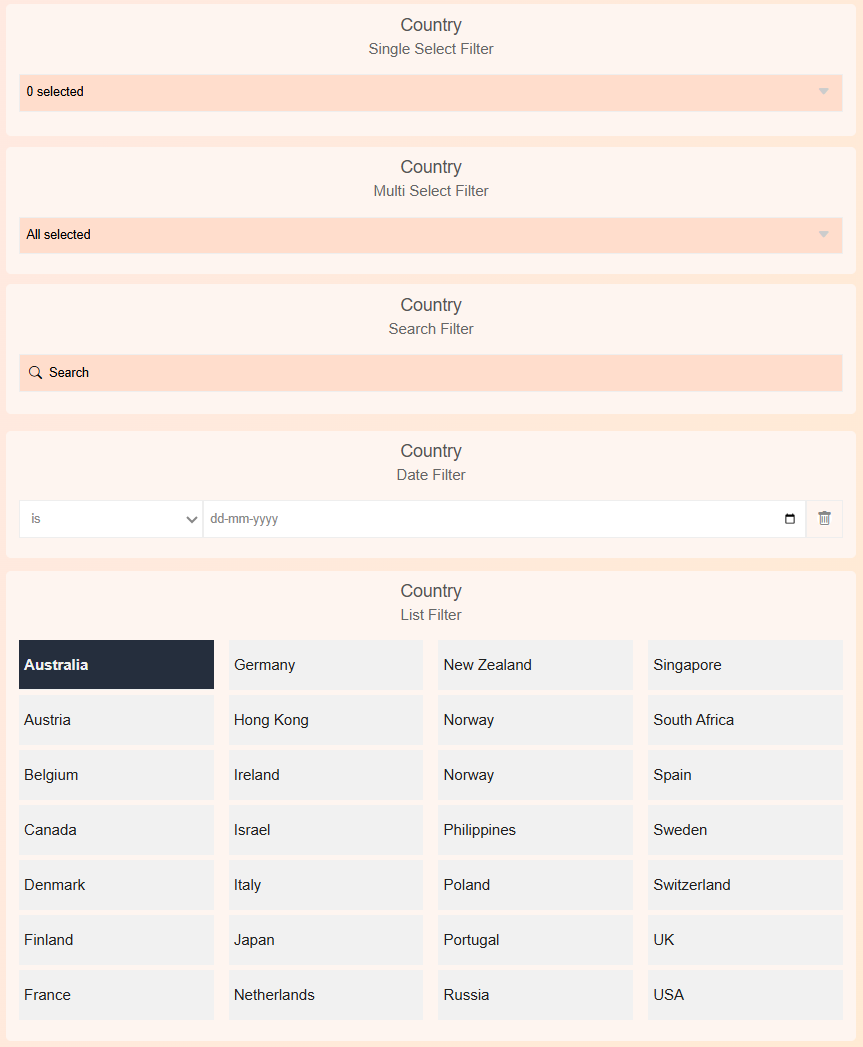
Filter components available in PersivX:
- Single select dropdown
- Multi select dropdown
- Search bar
- Date filter
- Single select list
- Multi select list
Filter components are fully customizable, in both functionality and look and feel. They can also be configured to update only selected visuals, which is covered separately in Filter Settings.
Creating a Filter on the Report
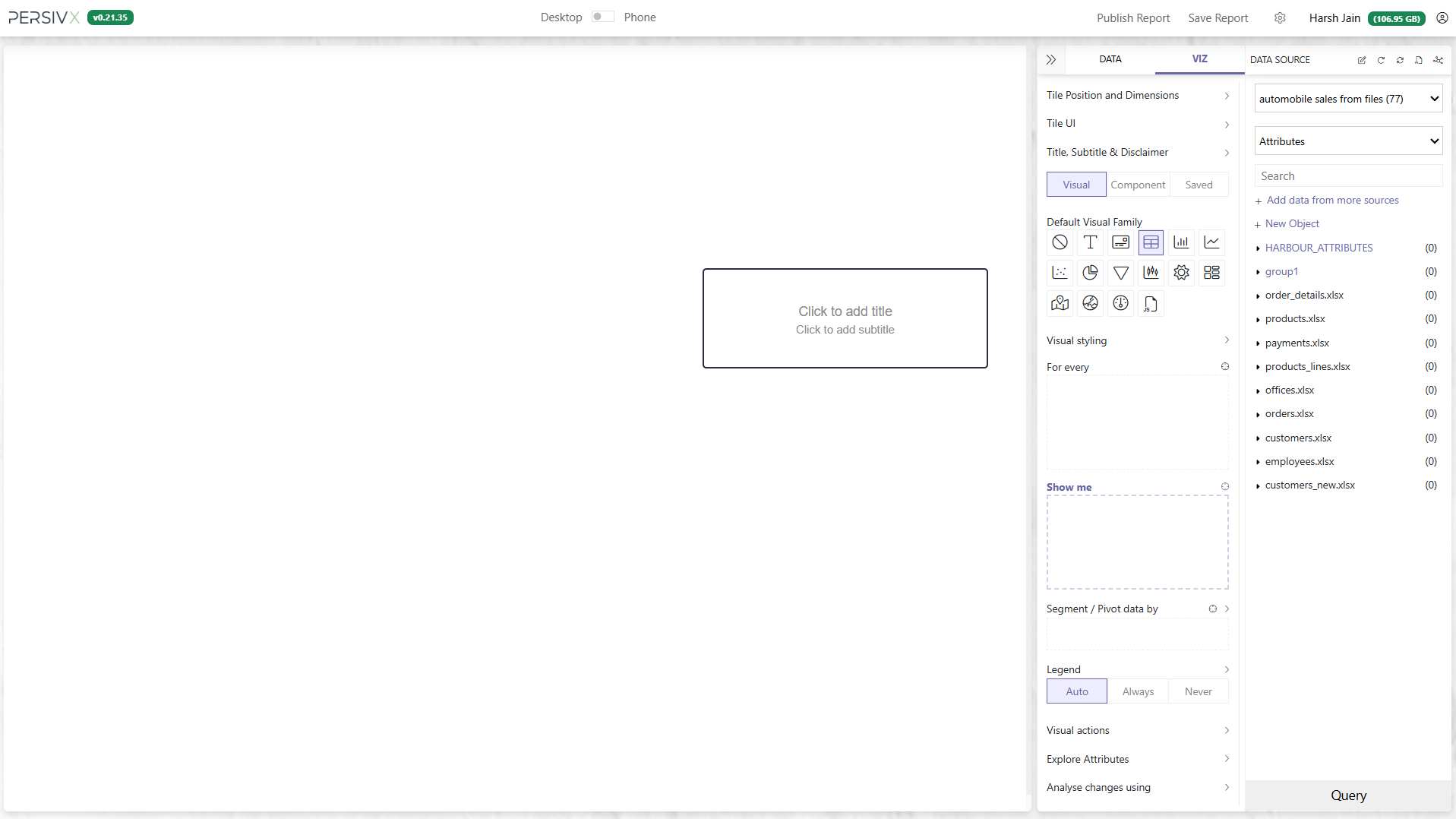
Step 1: Create a Tile
Click and drag in an empty area of the canvas to create a new tile. A tile is where a filter is created.
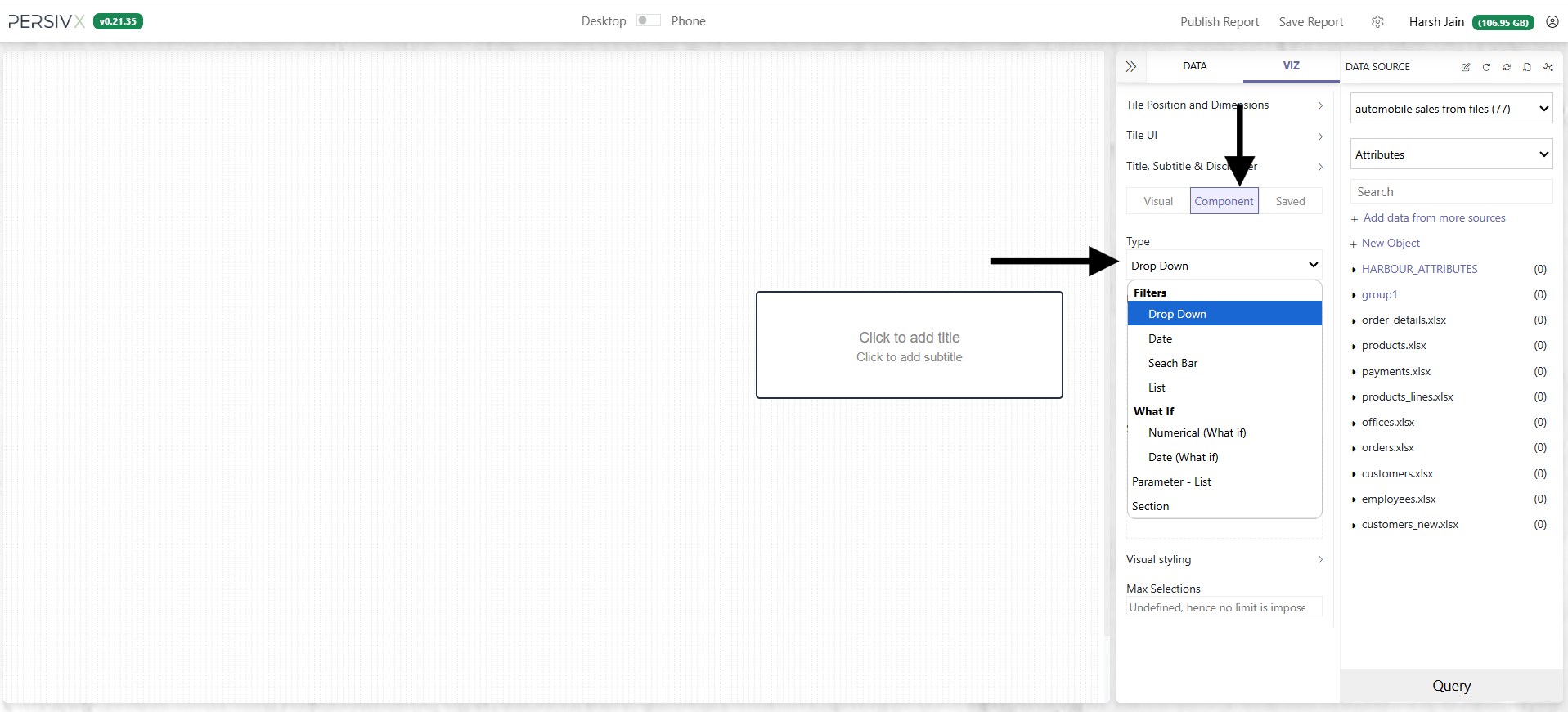
Step 2: Choose the Filter Type
Change the tile type to a Filter Component and select the kind of filter you want. Dropdown, date, search bar, and list are all built the same way.
Step 3: Pick the Attribute to Filter On
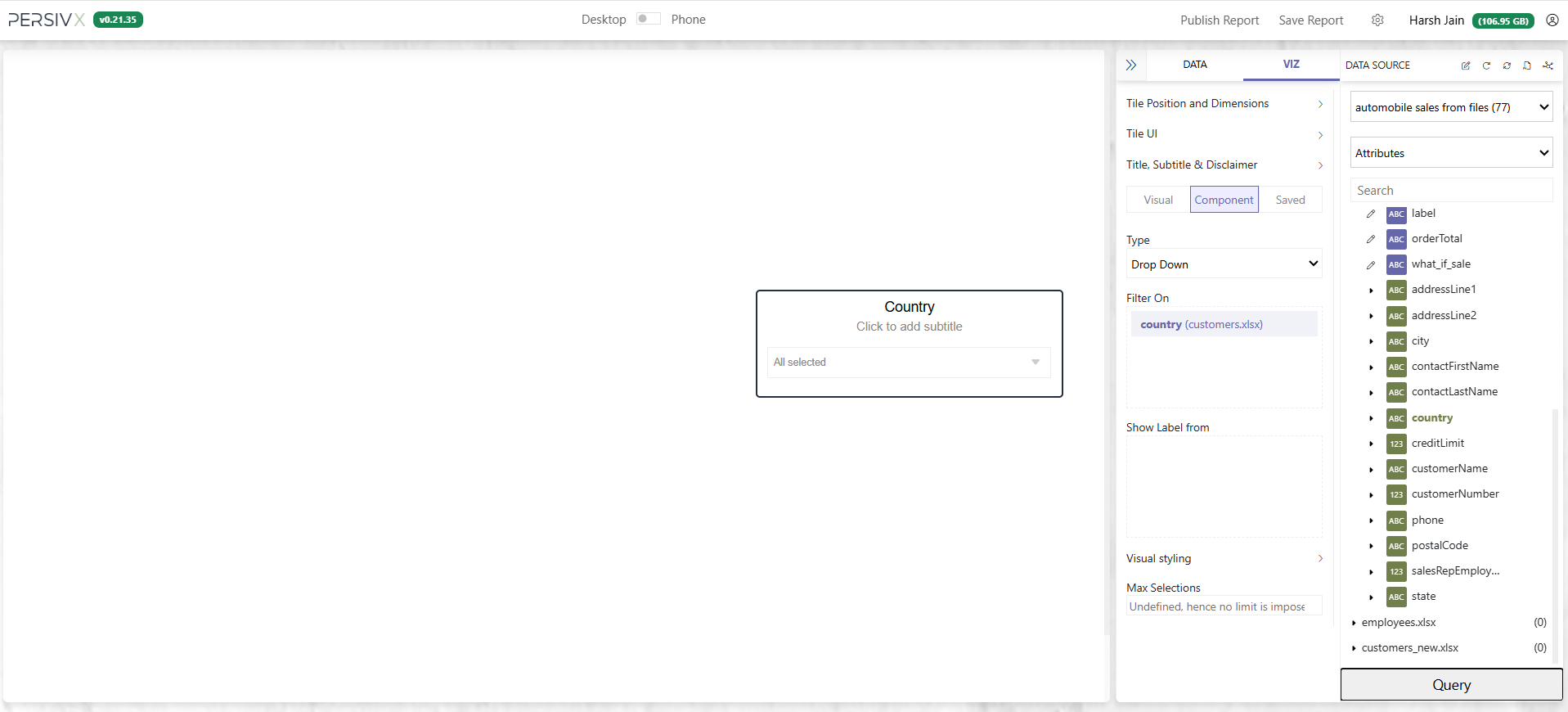
Select one attribute (column) from any object (table) for readers to filter on. In this example we let them filter on the customer's country using a dropdown. The component is built as soon as the attribute lands in the Filter On box. Ignore Show Label From for now.
Step 4: Style the Component
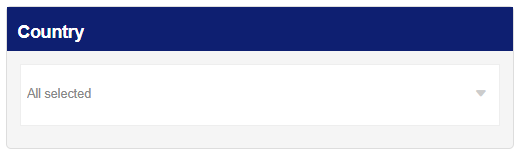
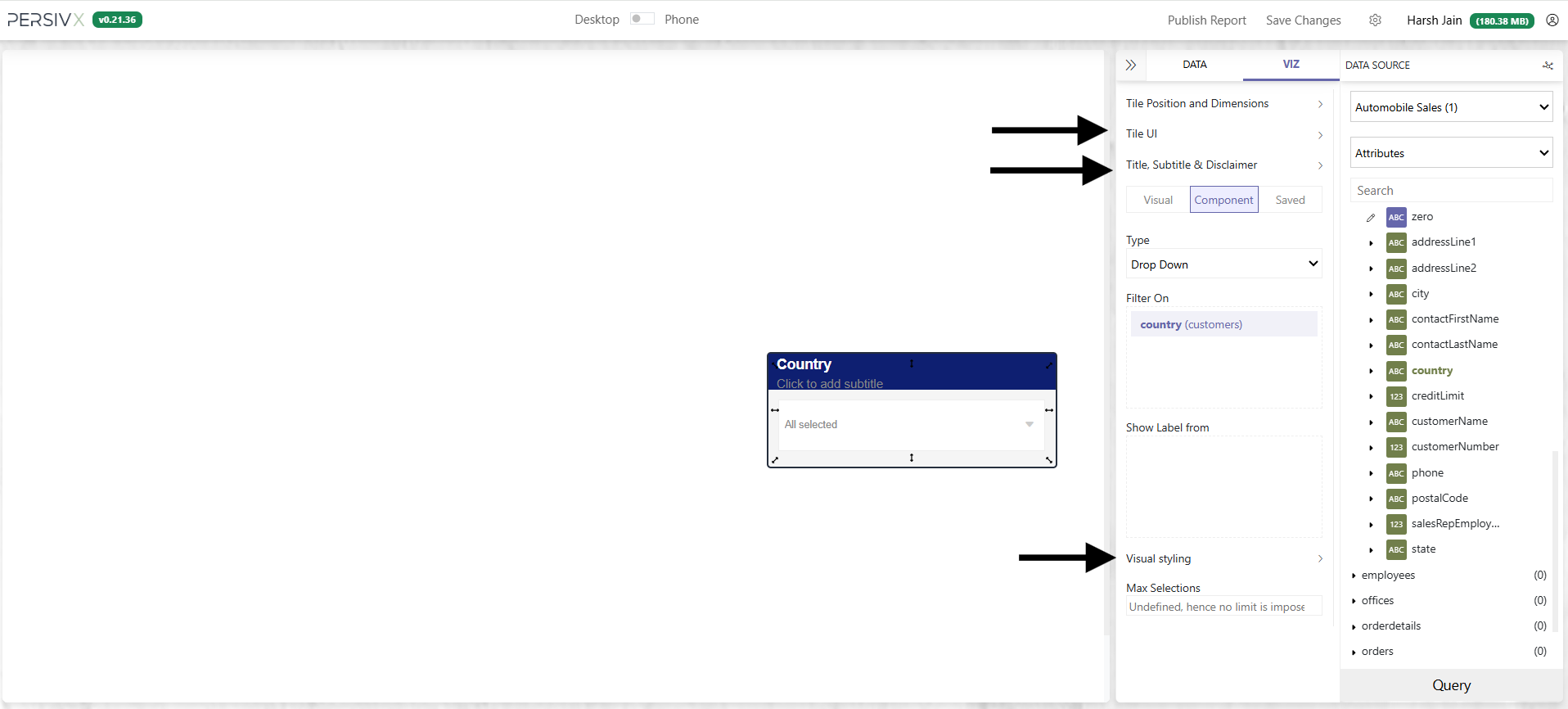
The UI updates according to the filter type you chose, letting you customize the component. Use the visual styling options to match your report's styling. Some filters also let you set a default value, applied automatically when the report loads.
Aligning List Buttons
For a List filter or a Parameter - List, Visual Styling has an Items Align setting. Use it to place the buttons at the left (the default), centre, or right of the tile. It only applies when Layout is horizontal. If there are more buttons than fit, the row scrolls from the first button whichever alignment you pick.
Using the Filter
Once the filter is added, readers can filter the data on the report.