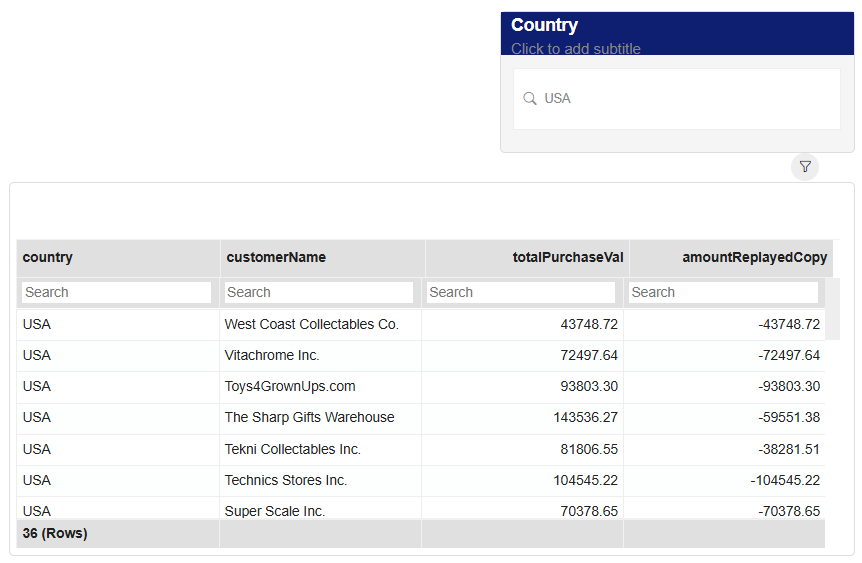
Updating the Filter Settings on a Report
Control how a filter component behaves on each individual visual.
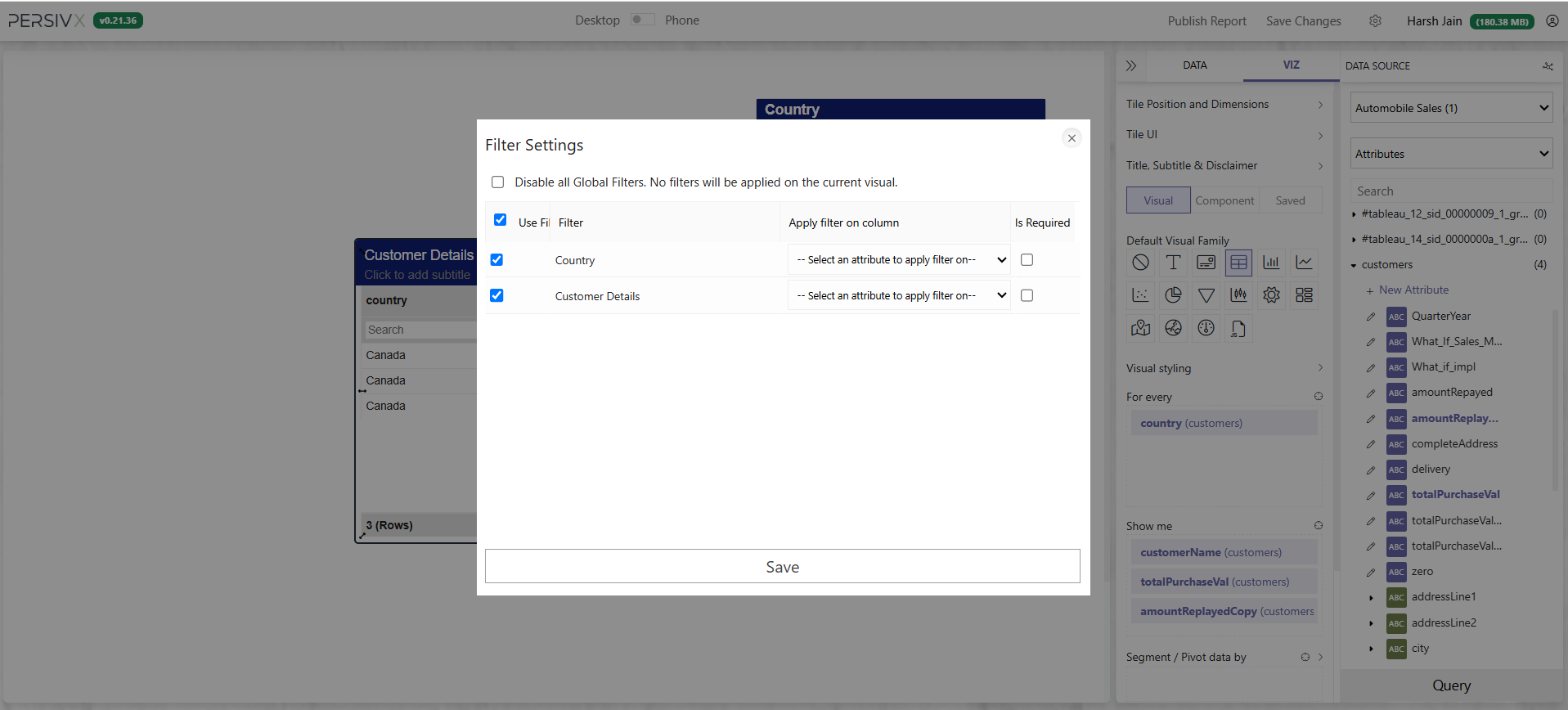
Filter Settings lets you define whether a filter affects a visual at all. If it does, you can optionally change which column the filter is applied on. You can also mark a filter as compulsory, so the visual will not load until a valid value is provided — either selected by the reader or supplied as a default.
Opening Filter Settings
Click the menu at the top right of the tile and select Filter Settings.
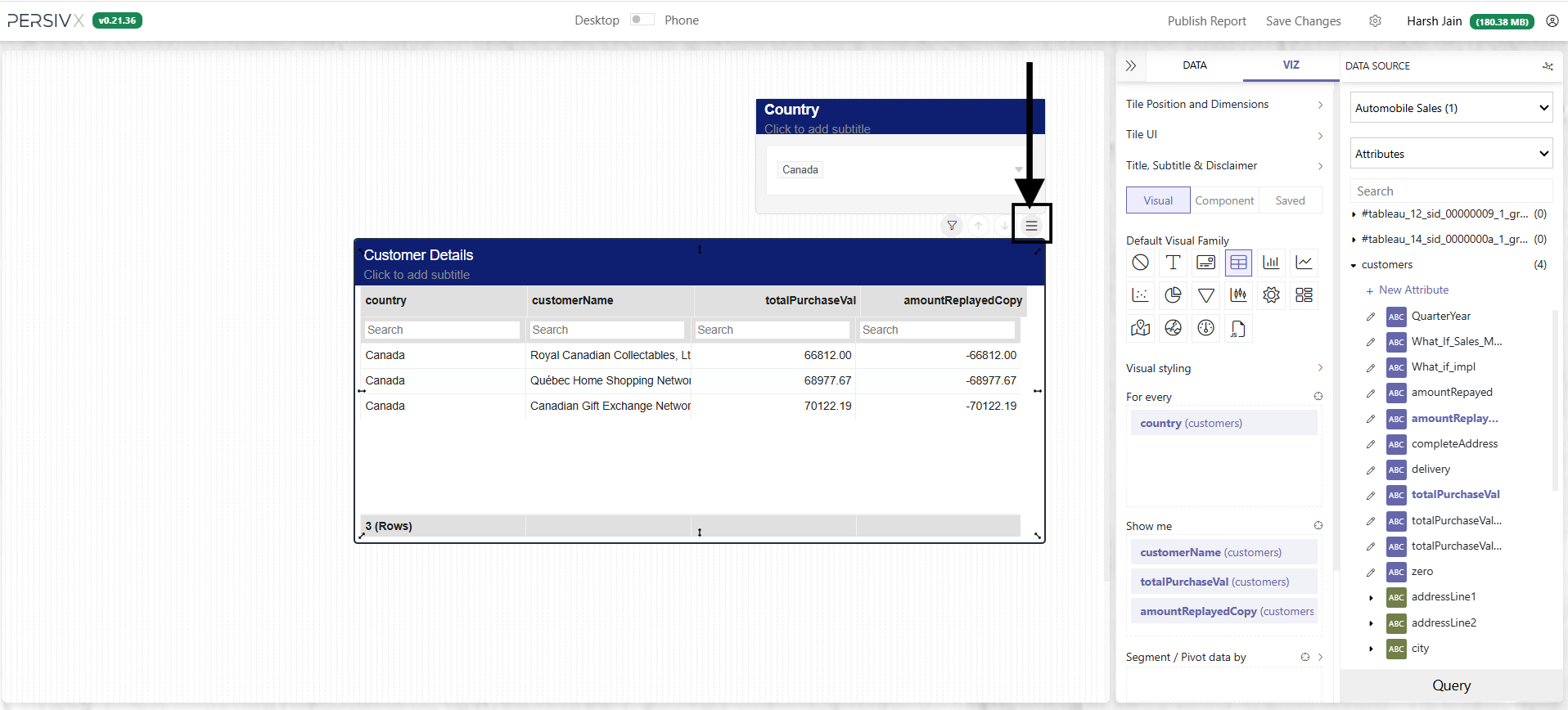
This opens the filter settings for that tile:
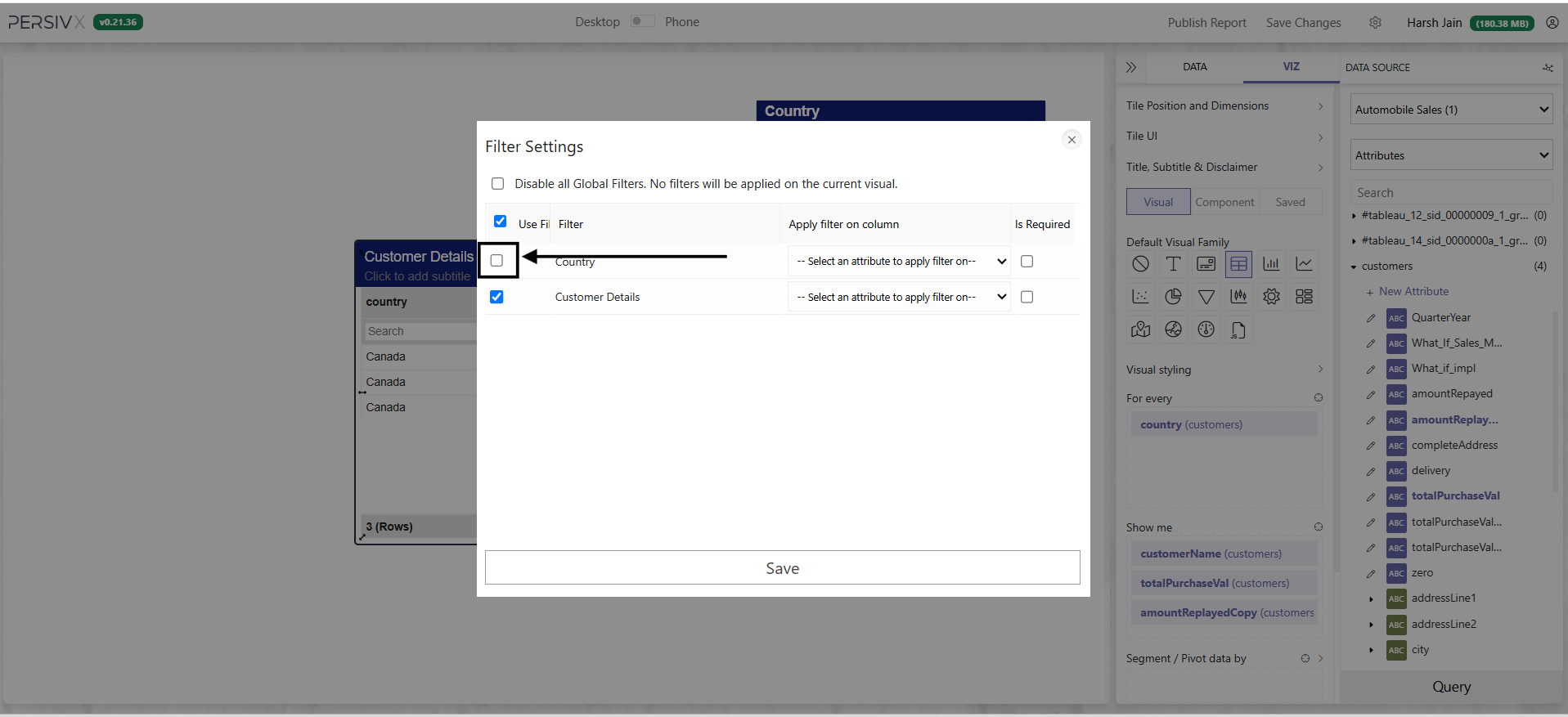
1. Stop One Filter From Affecting a Visual
Say the report has one filter and one visual, and you don't want the visual to update when the reader interacts with the Country filter.
Uncheck the checkbox next to the filters that should have no impact and click Save. Update the visual using the Query button at the bottom right of the screen, and the filter will no longer affect it.
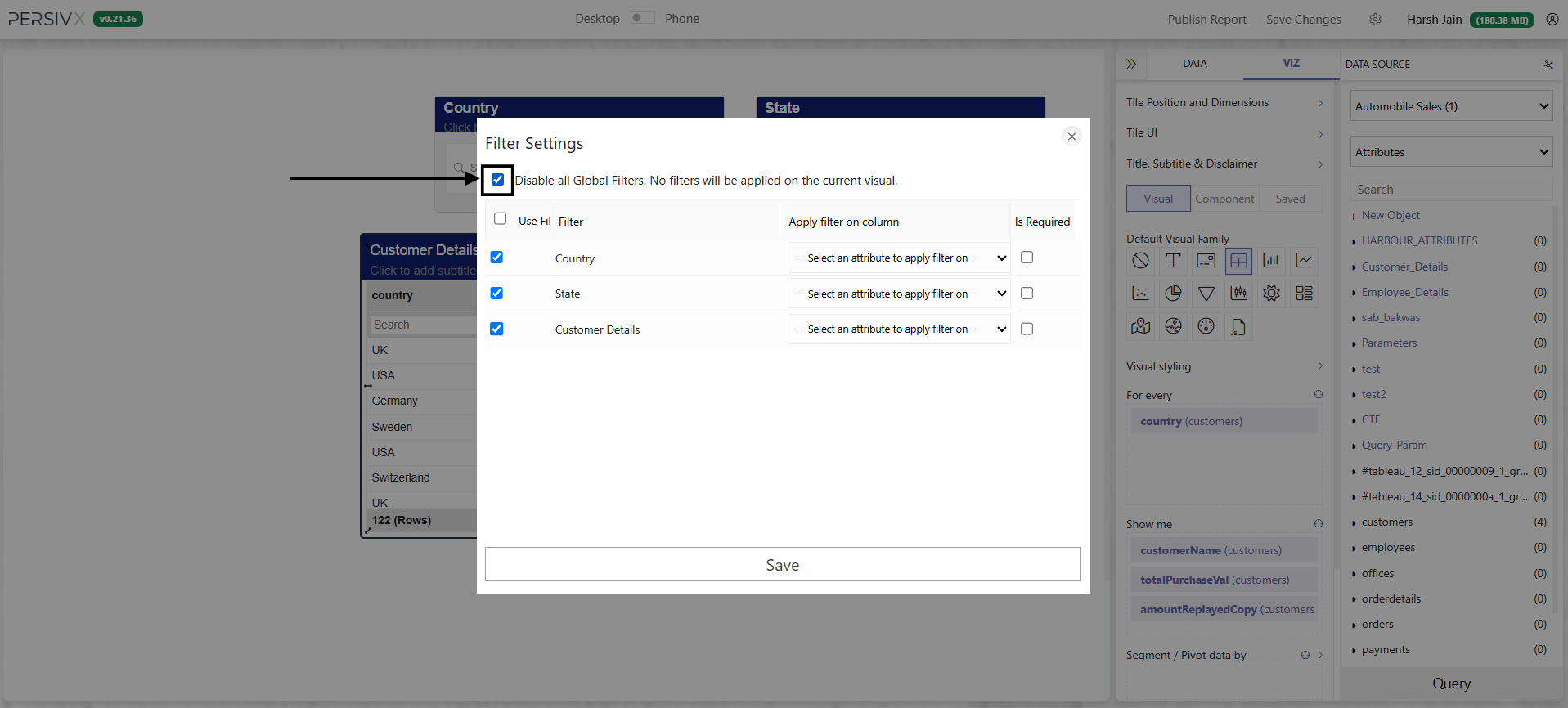
2. Stop All Filters From Affecting a Visual
When a report has several filters and a visual should ignore all of them, select Disable all Global Filters and click Save. Update the visual with the Query button, and no filter component on the report will affect it.
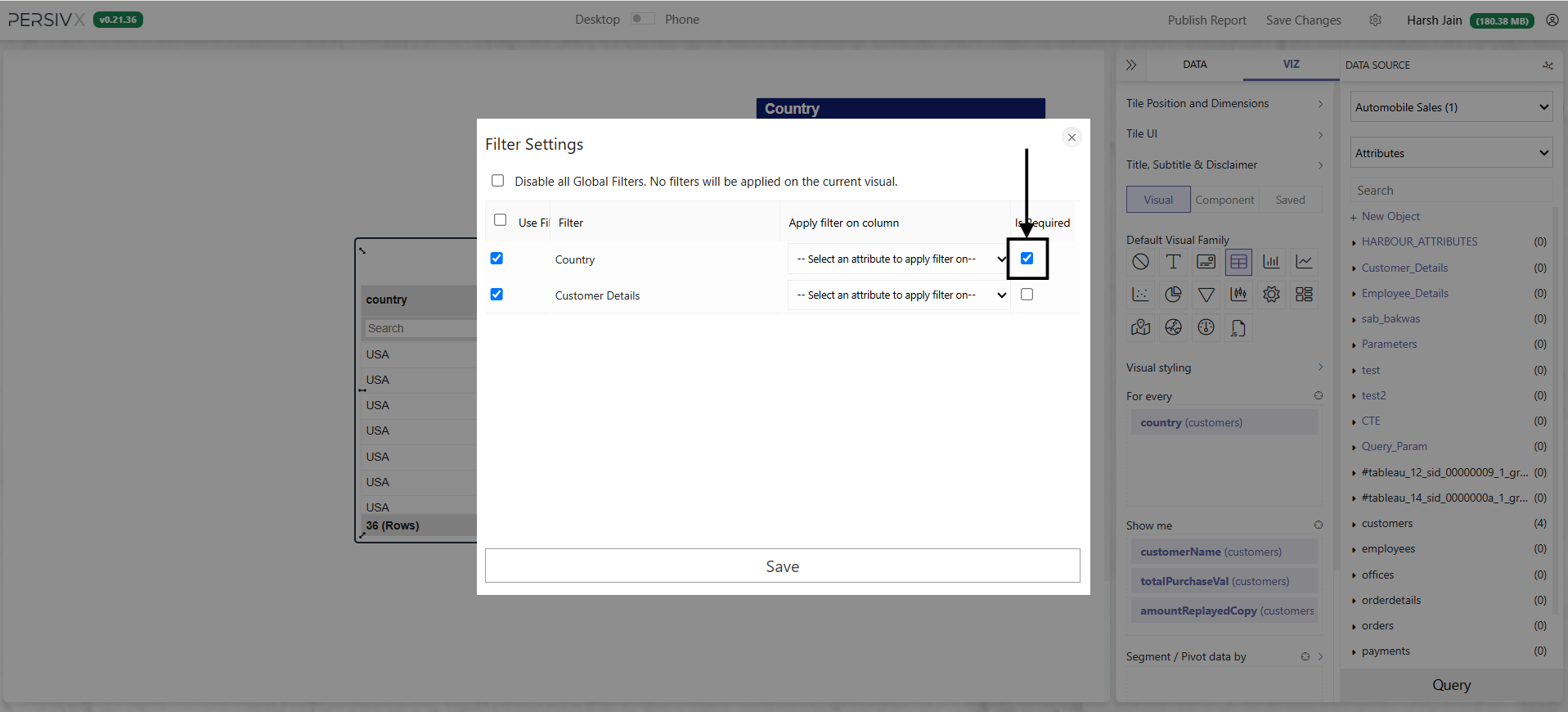
3. Mark a Filter as Required
To stop a visual loading until a valid filter value is selected, check the option in the Required column against that filter and refresh the visual.
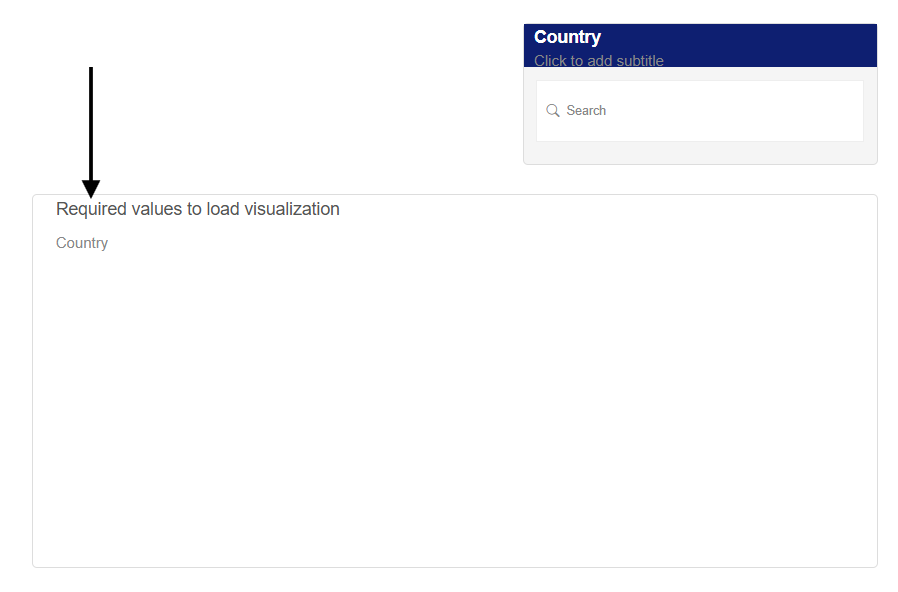
The visual then shows a message to the reader:
As soon as a valid value is provided, the visual loads: