Calculated Fields
Add custom calculations at the level of a single visual.
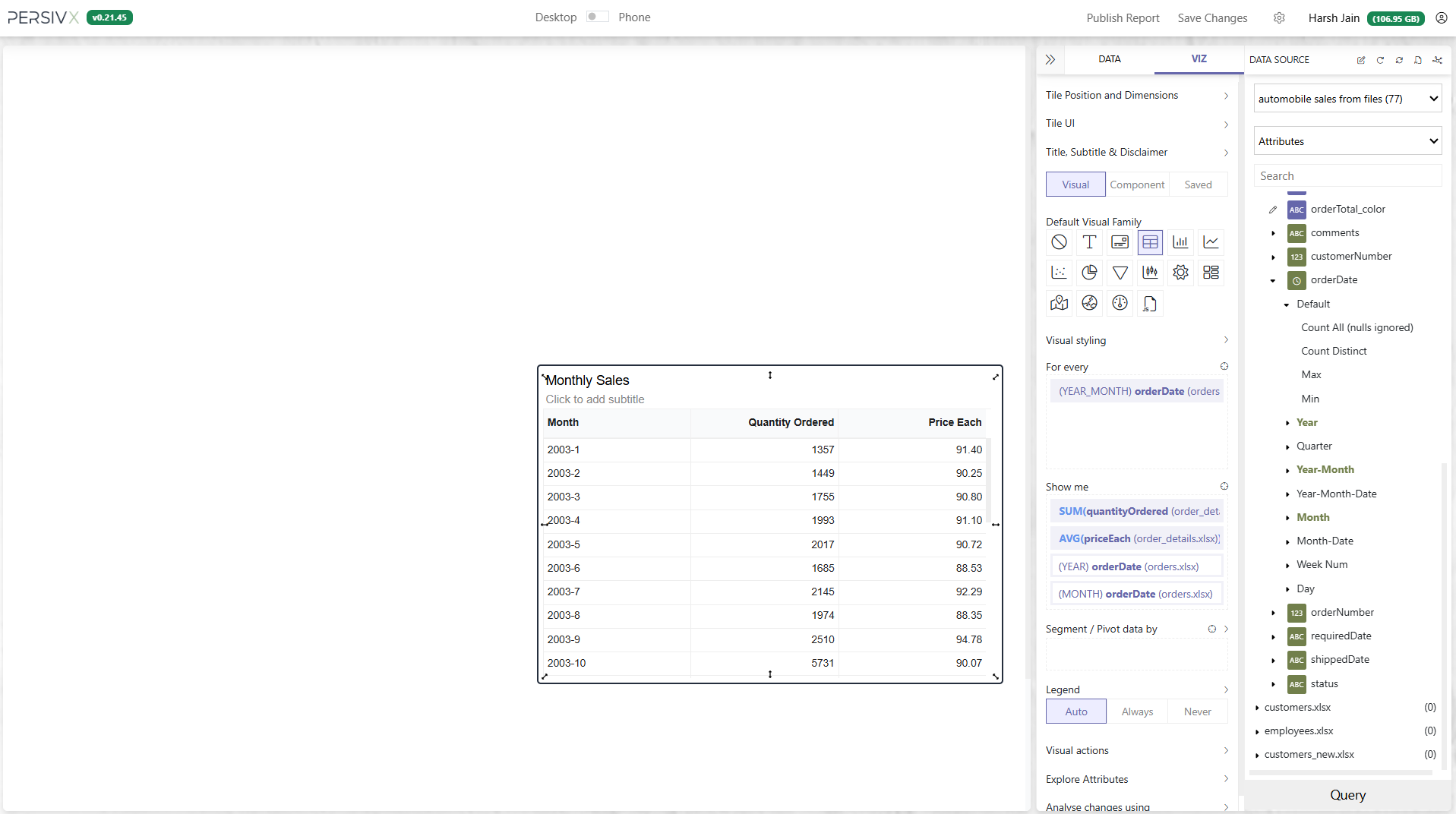
Say you want to display monthly sales, but you only have the fields Quantity Ordered and Price Each. To get Total Sales, you need the formula Total Sales = Quantity Ordered * Price Each.
Before
After
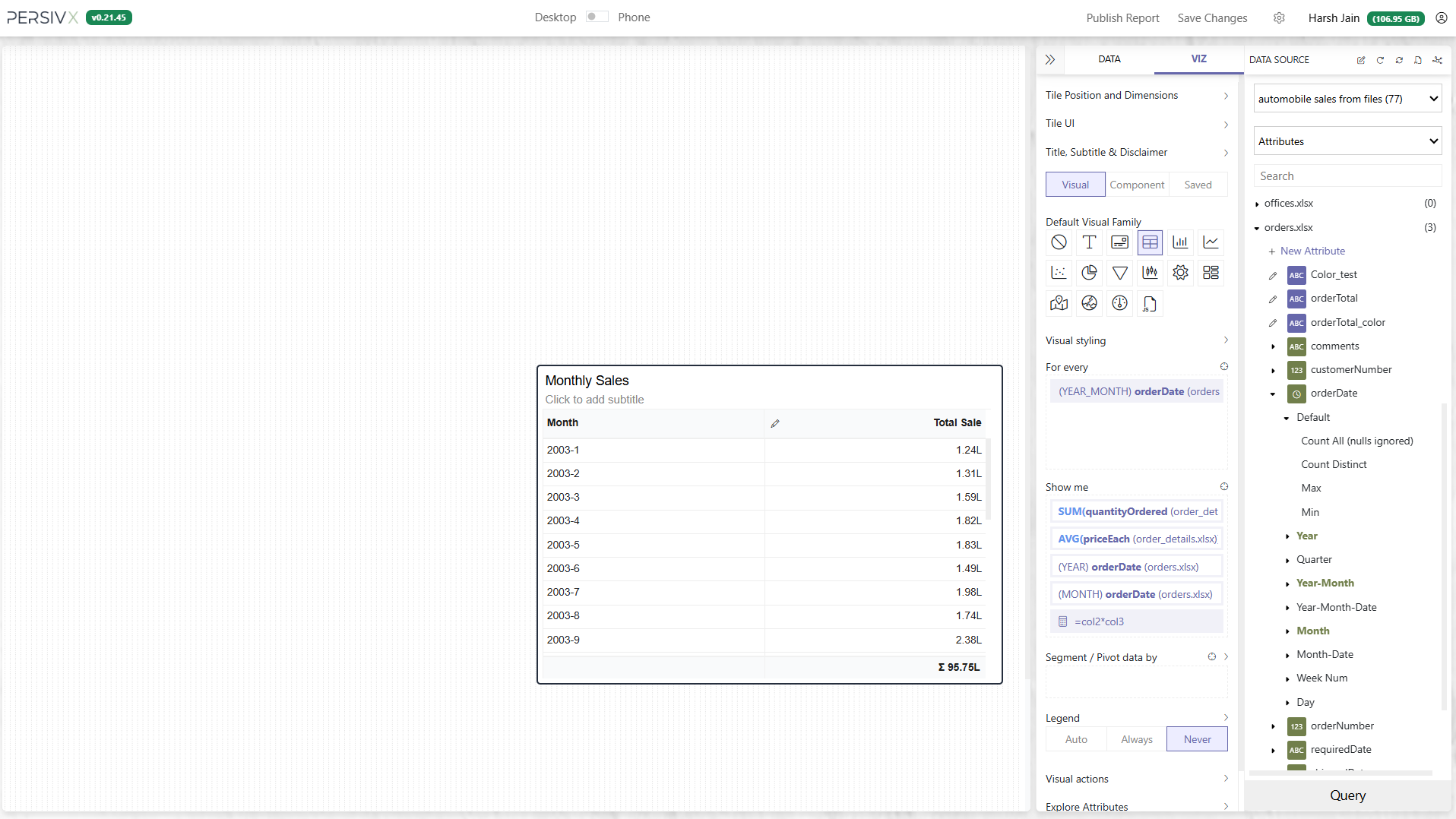
Step 1: Add a Calculated Field
In the tile menu, click + Calculated Field under Query & Transform.
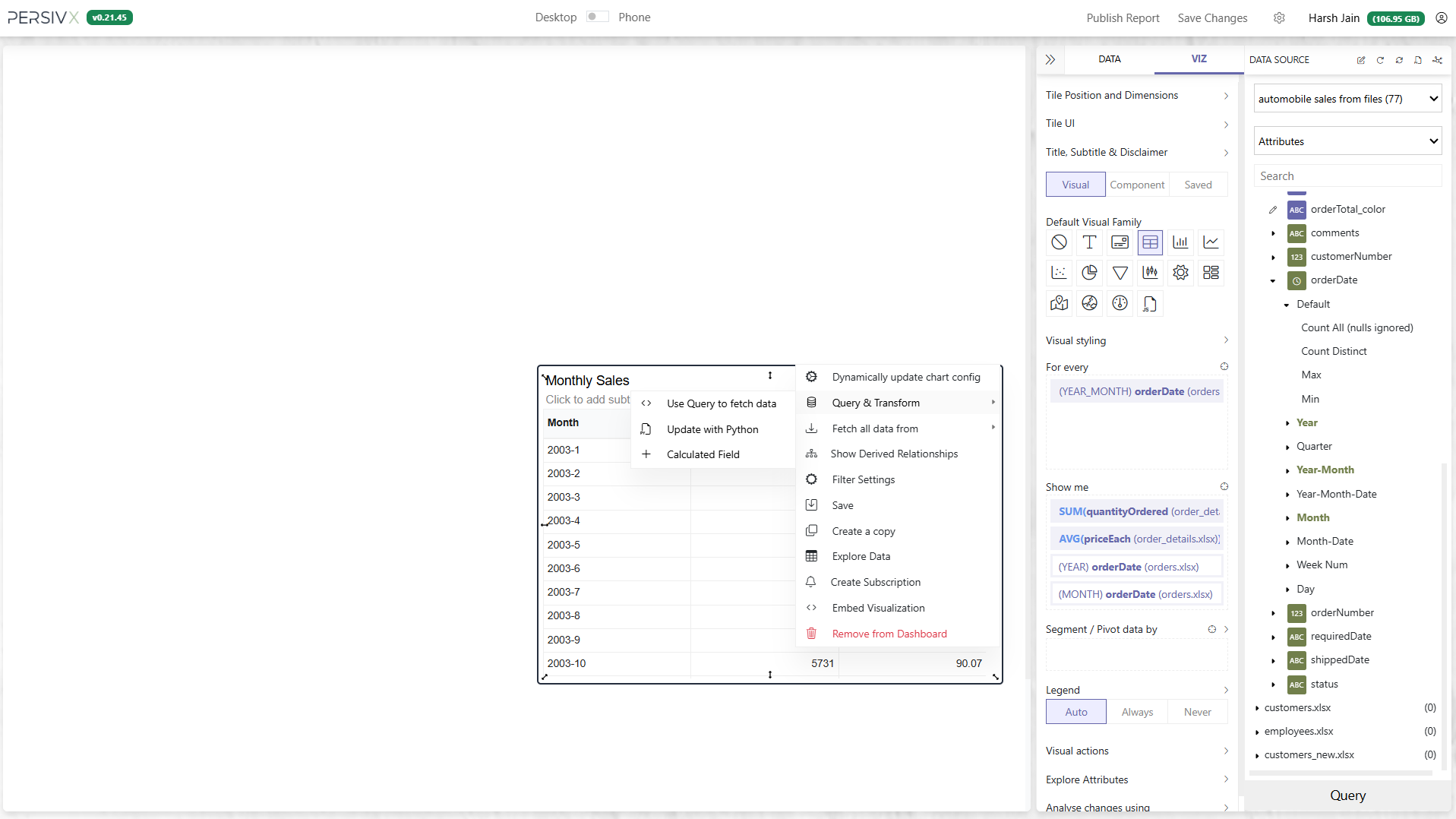
Step 2: The Formula Bar
A formula bar appears, along with column numbers against each column of the table.
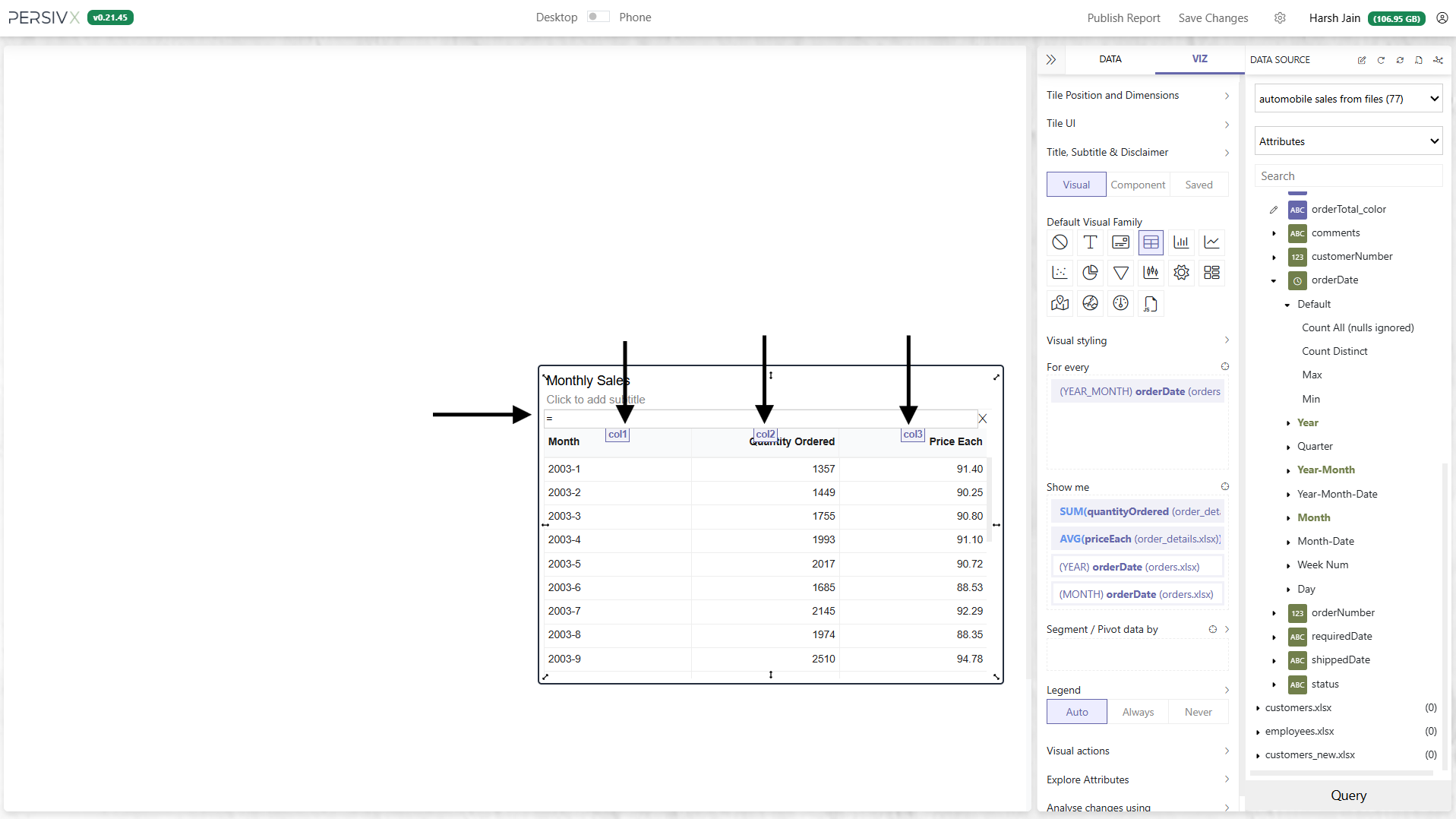
Step 3: Write the Formula
Add the formula the same way you would in a spreadsheet. We want Total Sales = Quantity Ordered * Price Each — that is, Total Sales = col2 * col3 — so the formula is = col2 * col3.
=CONCAT(col1, '-', col3) works as a calculated field.
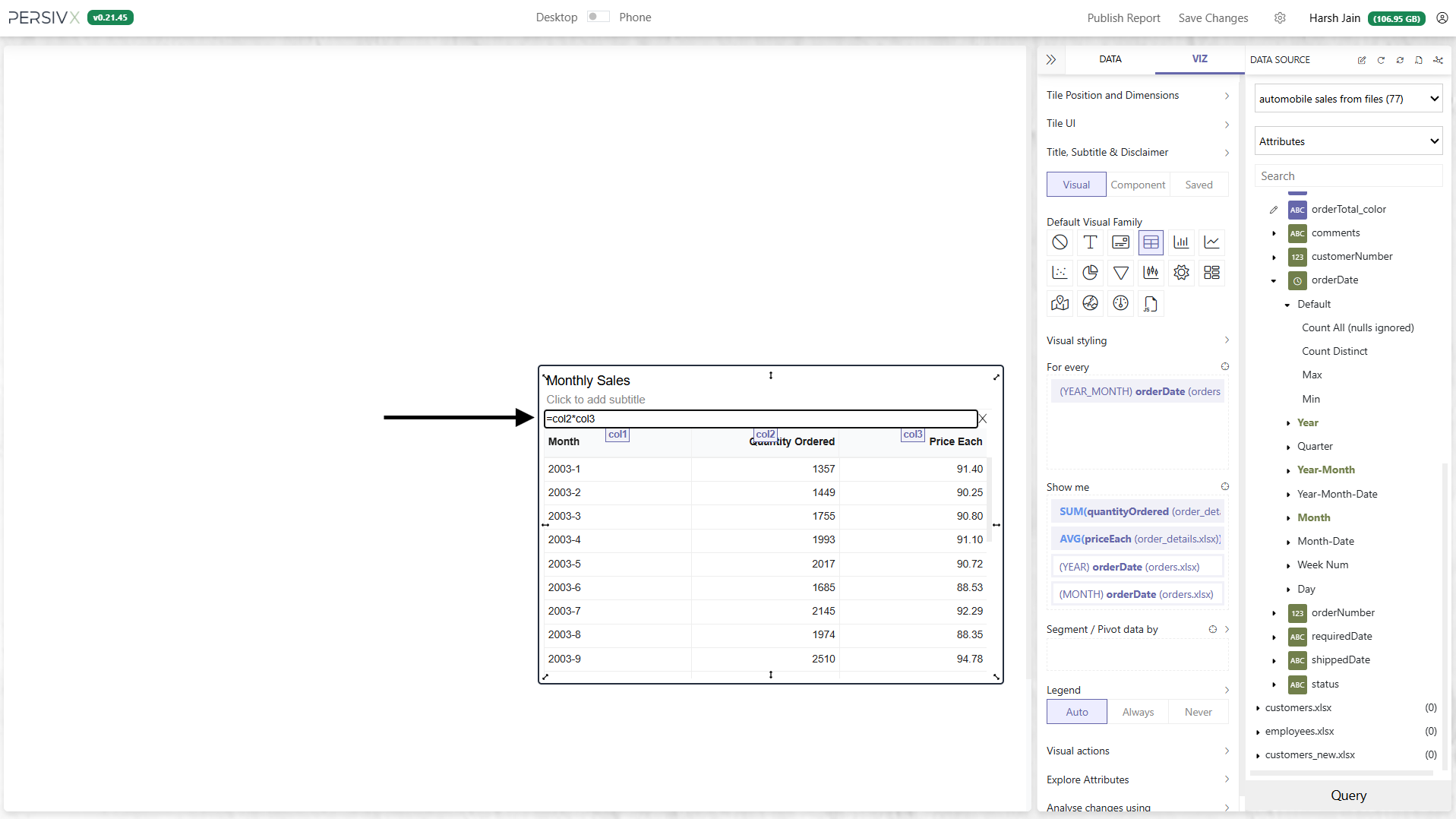
Step 4: Apply It
Click anywhere outside the formula bar and PersivX adds the new field to the table.
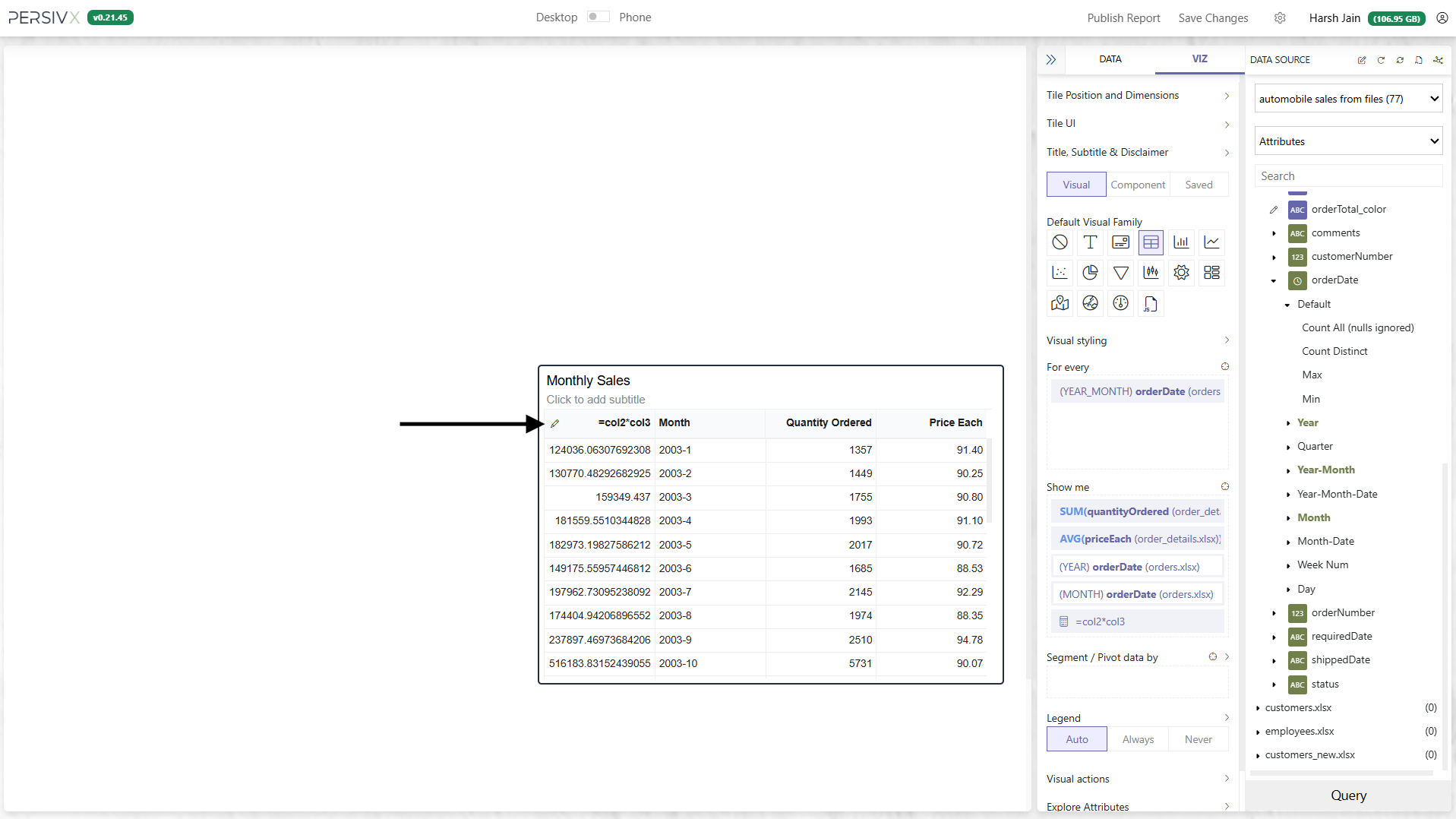
Step 5: Move and Rename
Move and rename the column. It can be customized exactly like any other column on a tile.
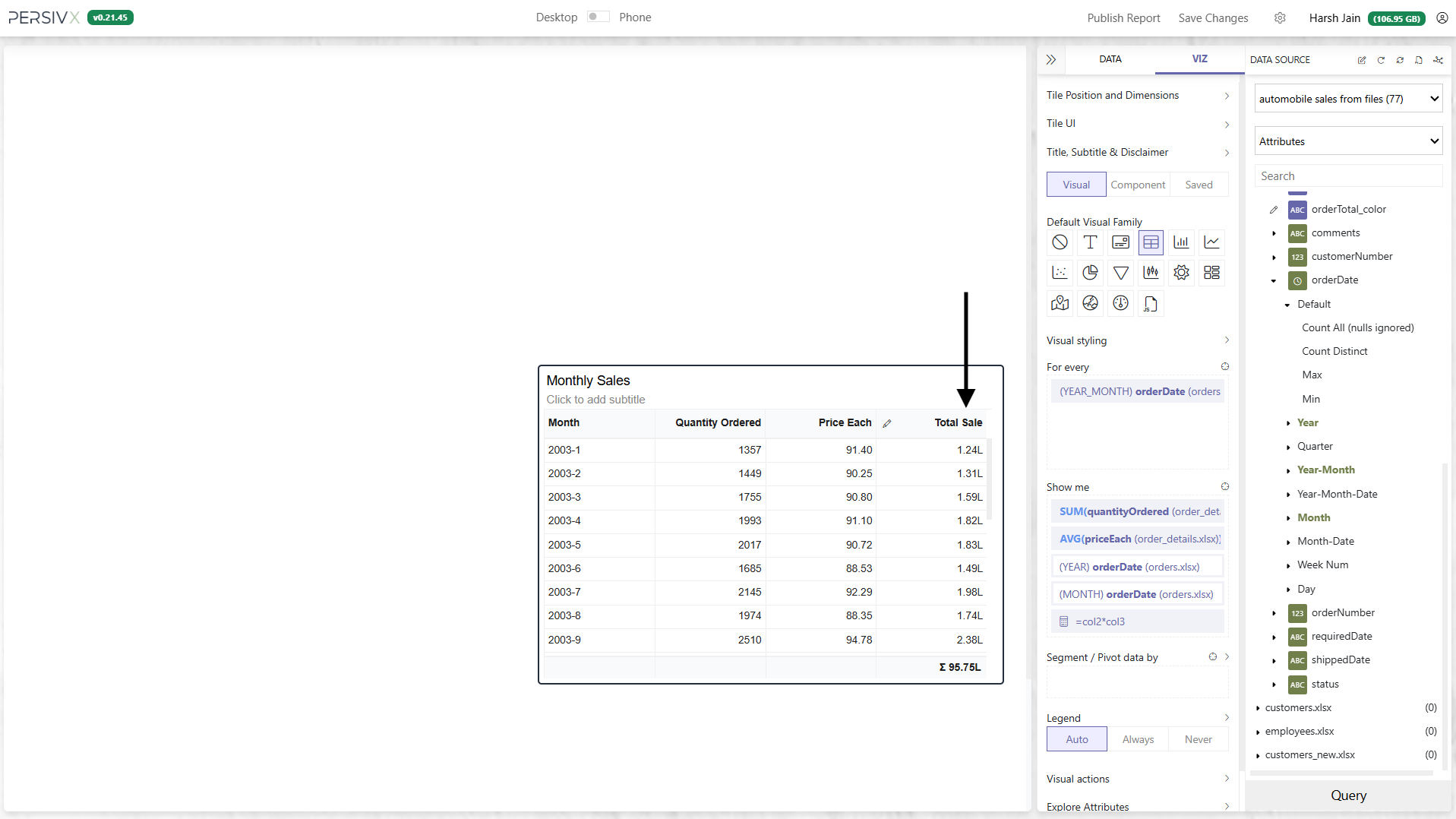
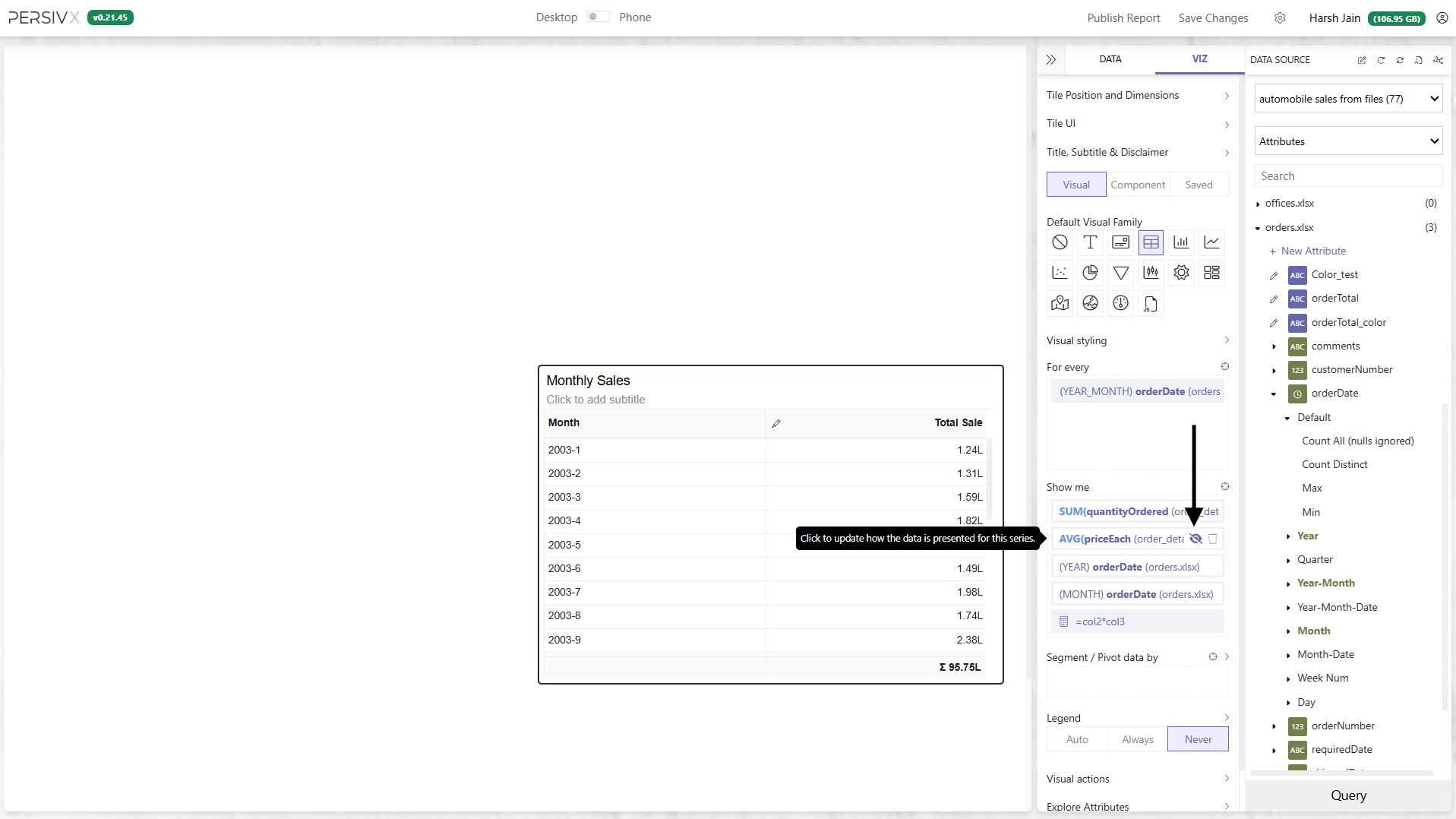
Step 6: Hide the Source Fields
If Quantity Ordered and Price Each are no longer needed on the visual, hide them.
SUM() or MAX(), create custom attributes instead.
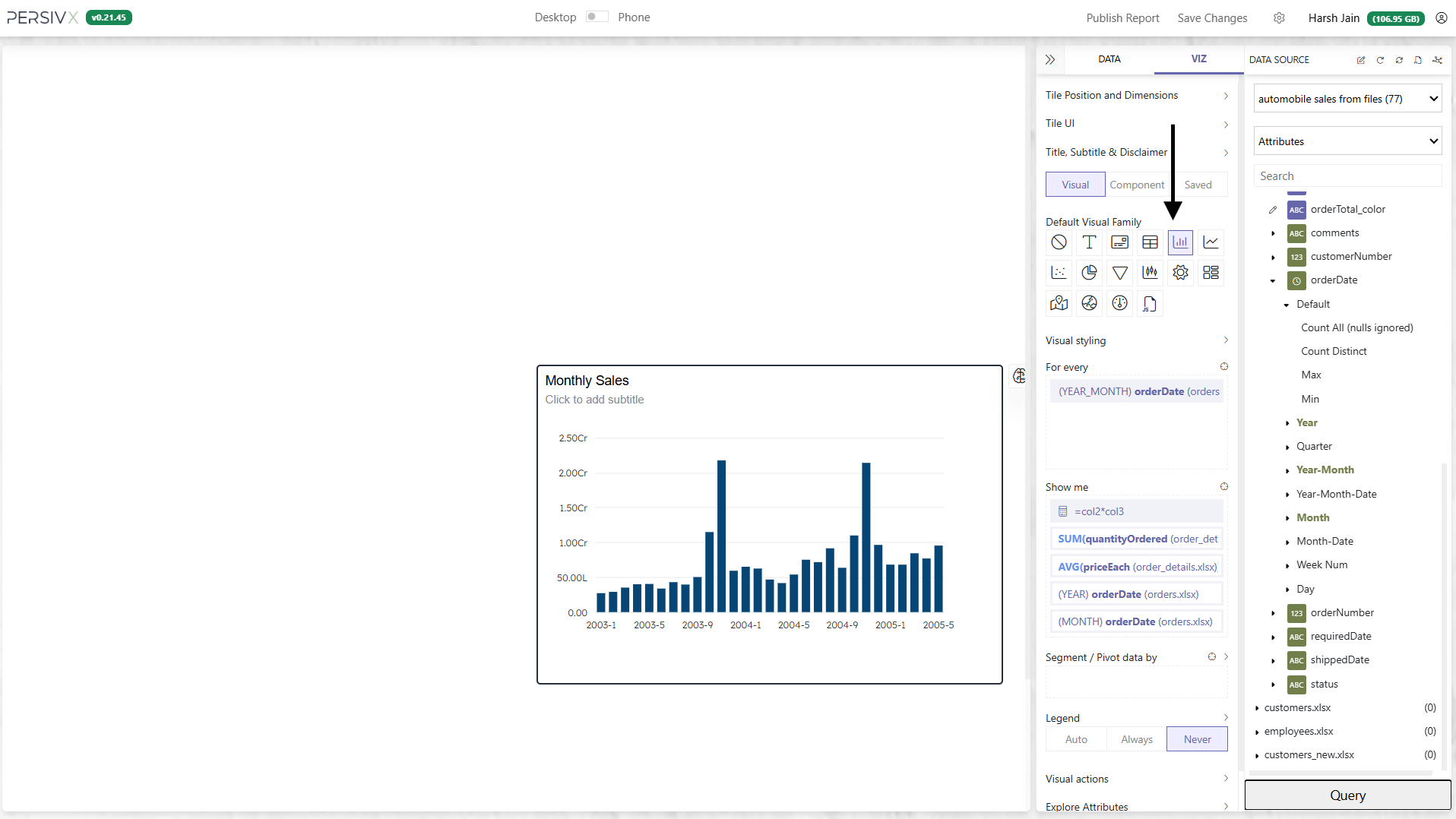
Step 7: Convert to Another Visual Type
The tile can now be converted to other visual types.
Important Points to Remember
- Calculated Fields never change the number of rows in a result — they only add columns.
- You can add as many calculated fields as you need on a single tile.
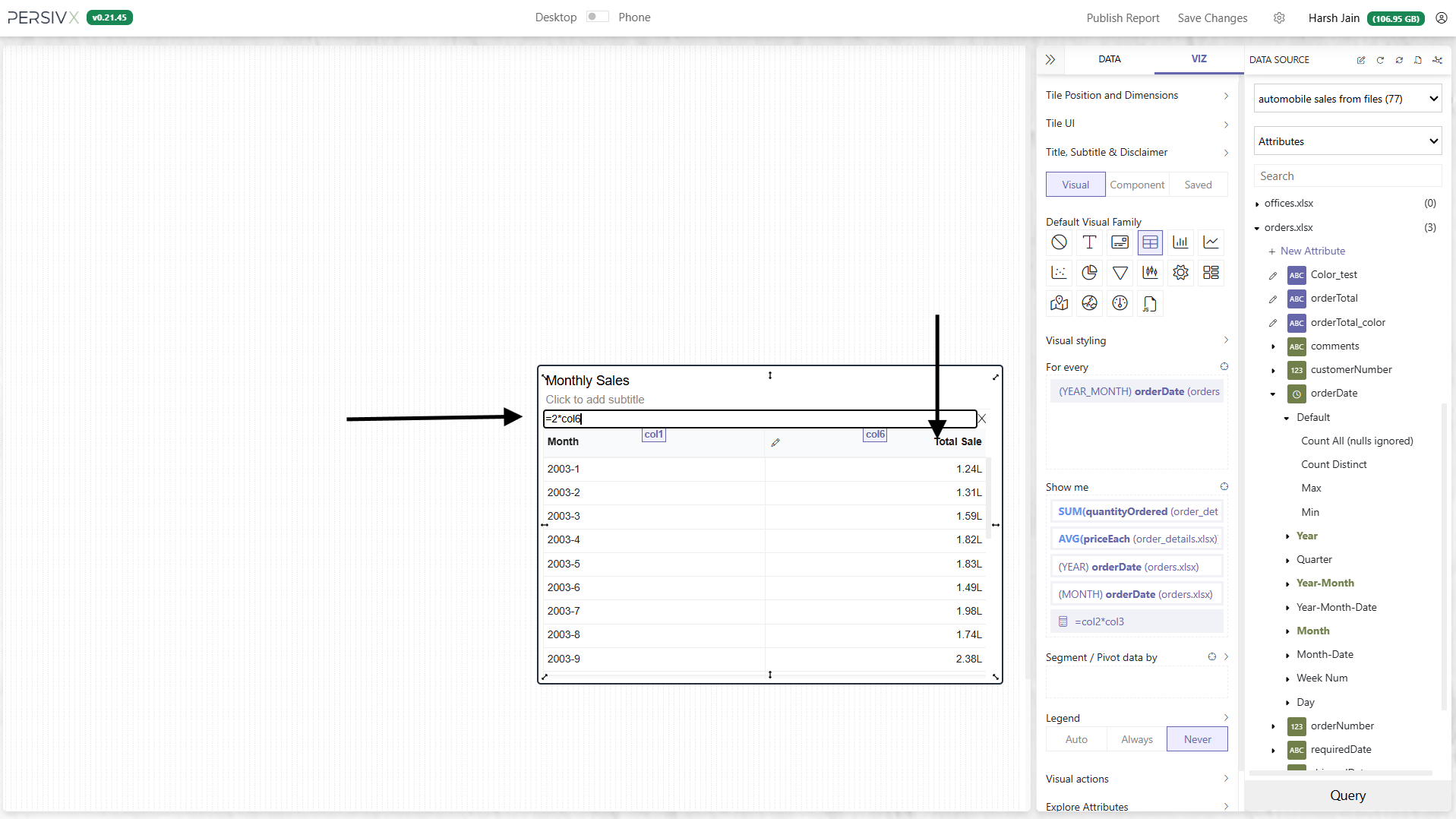
- A calculated field can be used to build further calculated fields. For example, adding a field showing
2 * Total Sales: